Tuesday, February 28, 2012

Sunday, February 26, 2012
The Hixson Student Show produces: The 1st ever Hixson Academy Award Show
The after school activity that I facilitate, along with @cidda, teamed up with our creative writing group, and film club students to produce an academy award style show that has content more relevant to the middle school students. All of the categories, scripts, filming were, and majority of video editing, was done by our students.
Hope you enjoy the show:
Friday, February 24, 2012
Friday Fun: Adding the emoticon keyboard to your iPhone👍
Following these 7 simple steps, you can find yourself coming up with ridiculous reasons to text people so you can use the plethora of emoticons your iPhone has to offer:
Step 1:Go to your settings and navigate to "General"
.JPG)
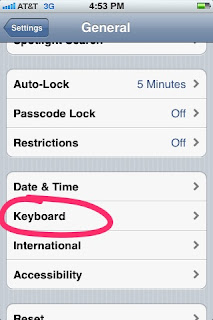
Step 2: Scroll to the Keyboard option and click it
.JPG)
Step 3: Scroll down until you come to International Keyboards, then click it.
.JPG)
Step 4: Click Add a new Keyboard
.JPG)
.JPG)
Step 6: Close out of the Settings and open up a new message, and click the small globe picture next to the 123
.JPG)
.JPG)
Step 1:Go to your settings and navigate to "General"
.JPG)
Step 2: Scroll to the Keyboard option and click it
.JPG)
Step 3: Scroll down until you come to International Keyboards, then click it.
.JPG)
Step 4: Click Add a new Keyboard
.JPG)
Step 5: Choose scroll down and choose Emoji
.JPG)
Step 6: Close out of the Settings and open up a new message, and click the small globe picture next to the 123
.JPG)
Step 7: This will open up your international Emoji keyboard. There are several different categories, within each category you can swipe to see all the different options.
.JPG)
Click an emoticon and it will show up in the text box area. When you want to return to the original keyboard, just click the globe again.
Note: If you send a emote to a non iDevice, it might not show the emoticon the same way to that user.
Happy emoting!
Subscribe to:
Posts (Atom)